Drone-Assisted Wi-Fi Surveying: Mapping Wireless Networks from the Air

Wi-Fi surveying is normally performed by walking around a building with a laptop, smartphone, or dedicated spectrum analyzer. But what happens when you combine wireless surveying with a drone?

A drone carrying a lightweight Wi-Fi sensor can become an interesting platform for studying how 2.4 GHz, 5 GHz, and potentially 6 GHz wireless signals propagate through a neighborhood or other authorized test area. The resulting data can be used to visualize coverage, identify channel congestion, study interference, and understand how surprisingly far Wi-Fi signals can travel.

The important distinction is that this project is about passive observation—not accessing other people’s networks.

Building the Drone Wi-Fi Survey Platform

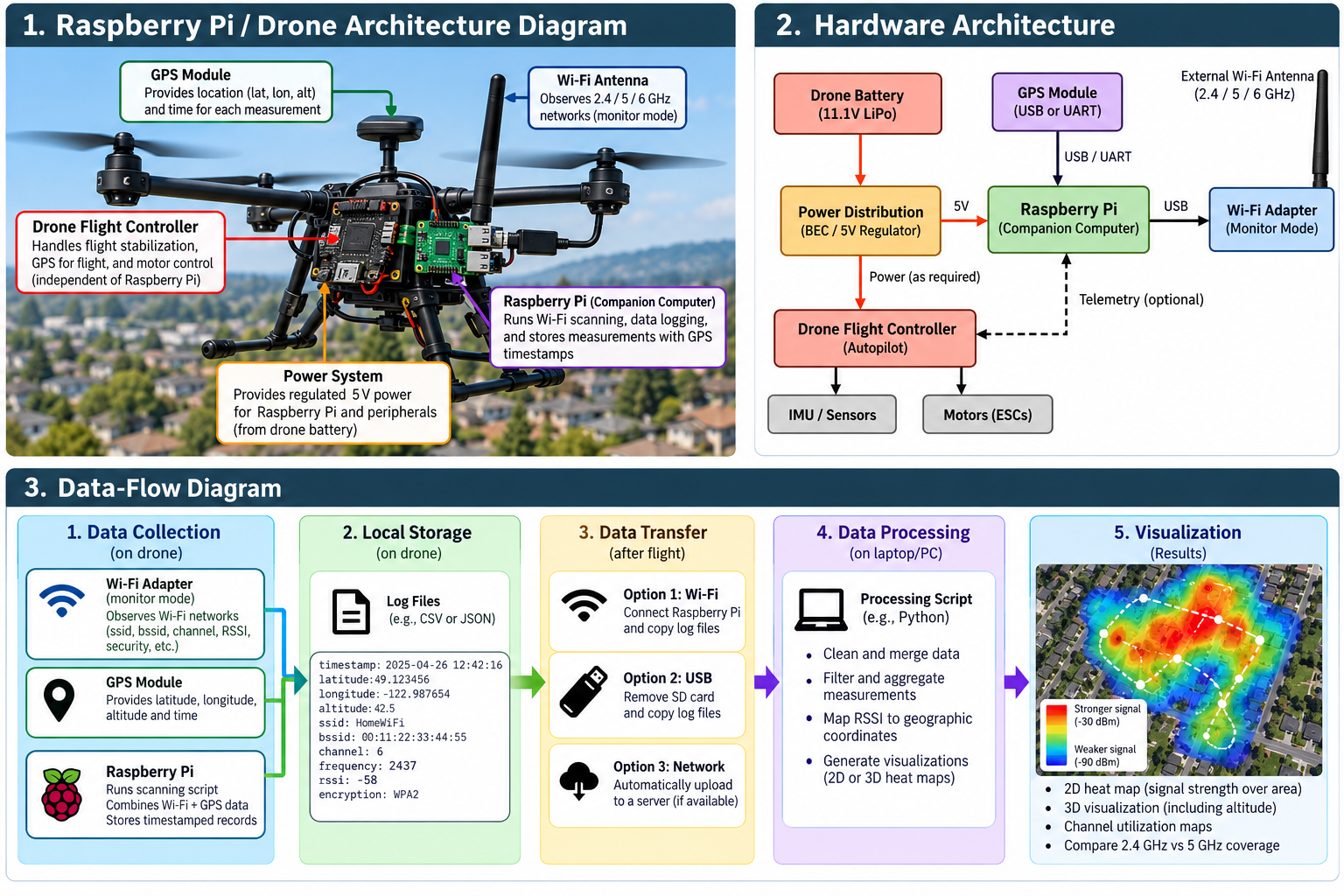
The drone itself does not necessarily need to perform the wireless analysis. Instead, it can carry a small companion computer.

A typical experimental setup could include:

Drone → Companion computer → Wi-Fi adapter → GPS → Logging software

A lightweight Linux computer such as a Raspberry Pi can serve as the data-collection system. A compatible Wi-Fi adapter can observe wireless management traffic while GPS coordinates provide geographic context.

The drone’s normal flight controller remains responsible for flying the aircraft. The companion system independently records wireless observations.

An important engineering consideration is weight. Every additional component affects flight time, balance, power consumption, and potentially radio interference.

What Can Be Observed?

Wi-Fi access points periodically transmit management information that allows nearby devices to discover wireless networks.

A passive survey can record information such as:

  • SSID, when the network name is publicly advertised
  • BSSID or access-point identifier
  • Wi-Fi channel
  • Frequency band
  • Signal strength (RSSI)
  • Advertised security mode
  • Supported wireless capabilities
  • Observation time
  • GPS coordinates of the measurement

You don’t need to authenticate with the network to perform this type of radio survey.

More importantly, discovering a Wi-Fi network does not mean that you have permission to connect to it, capture private communications, defeat its security, or attempt to determine its password.

Monitor Mode and Wireless Observation

For research conducted on networks and equipment you own or have permission to test, Linux wireless adapters that support monitor mode are particularly useful.

Monitor mode allows an adapter to observe compatible 802.11 radio frames rather than behaving solely as a conventional Wi-Fi client.

Common wireless-analysis platforms include Wireshark, Kismet, and Linux wireless utilities.

For a drone experiment, a particularly useful architecture is to have the companion computer continuously generate records resembling:

Timestamp | GPS | BSSID | SSID | Channel | RSSI | Security

For example:

12:42:16 | 49.x,-122.x | AP-01 | TestLab | 6 | -58 dBm | WPA3

The coordinates above should represent where the measurement was taken, not necessarily the actual location of the access point.

Creating a Wi-Fi Heat Map

This is where the project becomes especially interesting.

Imagine flying several predetermined paths across your own property or another area where surveying is authorized. The sensor records the received signal strength of your test access point every few seconds.

After the flight, the measurements can be imported into Python, GIS software, or another visualization platform.

The result could look conceptually like:

Drone flight path

↓

GPS + Wi-Fi observations

↓

Timestamp synchronization

↓

RSSI measurements

↓

Geospatial database

↓

Wireless coverage heat map

Instead of simply discovering that an access point exists, you can visualize how its signal changes with altitude and distance.

A More Interesting Experiment: 3D Wi-Fi Mapping

A drone offers something that conventional Wi-Fi surveying does not easily provide: altitude.

Record latitude, longitude, altitude, and RSSI together:

Latitude | Longitude | Altitude | Channel | RSSI

You can then investigate questions such as:

How quickly does a Wi-Fi signal weaken vertically?

Does a second-floor access point produce stronger measurements at certain drone altitudes?

How do buildings, trees, roofs, and other obstacles affect propagation?

Does 2.4 GHz remain detectable farther away than 5 GHz?

The measurements could eventually be transformed into a three-dimensional RF coverage model.

Detecting Channel Congestion

The same platform can also study spectrum utilization.

In a typical residential area, numerous access points may compete for a relatively small amount of spectrum. A passive survey can count observed access points by channel and compare their relative signal strengths.

For example:

ChannelAPs ObservedStrongest RSSI
18-51 dBm
617-43 dBm
116-61 dBm

This information can help you understand interference affecting your own network and select more appropriate channels where manual channel selection is supported.

Security Lessons from the Experiment

Aerial Wi-Fi surveying demonstrates an important cybersecurity principle:

Radio signals do not stop at your property line.

A wireless network intended for a home may remain detectable from the street, neighboring properties, or from above.

Home users should therefore rely on strong security rather than assuming physical distance provides protection.

Use WPA3 when supported, or WPA2-AES for older equipment. Choose a strong, unique Wi-Fi passphrase, disable WPS when it isn’t needed, keep router firmware updated, and place untrusted IoT equipment on an isolated network or VLAN where possible.

Network names should also avoid unnecessarily revealing personal information such as a resident’s name, apartment number, or address.

Keep the Experiment Passive

There is an important technical and ethical boundary between wireless surveying and wireless intrusion.

A drone-based research project can examine signal strength, channels, frequency utilization, coverage, and publicly advertised wireless characteristics.

It should not be used to attempt authentication against neighboring networks, obtain passwords, bypass encryption, disrupt access points, impersonate legitimate infrastructure, or access systems without authorization.

If you want to experiment with offensive Wi-Fi security techniques, build a controlled lab using access points and client devices that you own. That gives you a safe environment for studying authentication, packet analysis, wireless attacks, detection, and defensive monitoring without targeting somebody else’s network.

Conclusion

Combining drones, Linux, GPS, Wi-Fi sensing, and geospatial visualization creates a fascinating cybersecurity and RF engineering project.

A relatively simple drone-mounted sensor can transform individual Wi-Fi observations into a geographic dataset showing how wireless signals propagate through three-dimensional space.

The most interesting result isn’t discovering how many networks are nearby. It’s understanding how radio signals behave outside the environments in which we assume they are contained.

That makes drone-assisted Wi-Fi surveying useful not only as a hobby project, but also as an introduction to wireless security, RF propagation, spectrum analysis, geospatial analytics, and defensive network engineering.

How to Protect Your Social Media Accounts from Being Hacked

Social media has become an important part of everyday life. Platforms such as Facebook, Instagram, LinkedIn, TikTok, and X allow us to communicate, share photographs, build professional networks, and stay connected with friends and family.

Unfortunately, these accounts are also attractive targets for cybercriminals.

A compromised social media account can be used to impersonate you, scam your contacts, steal personal information, distribute malicious links, or gain access to other online accounts. Fortunately, a few simple security practices can significantly reduce the risk.

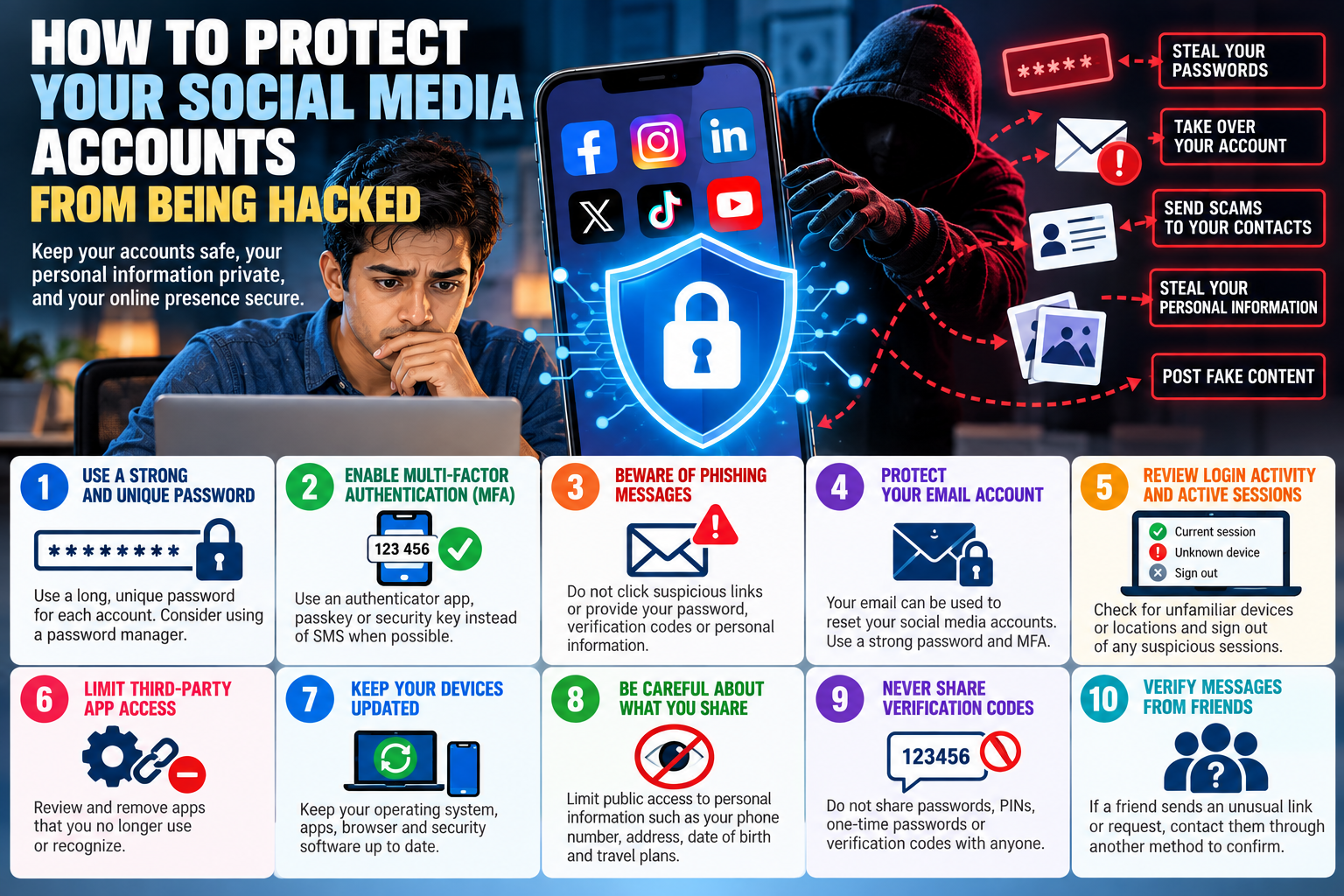
1. Use a Strong and Unique Password

Never reuse the same password across multiple social media accounts.

If attackers obtain a reused password from a breach involving one service, they may try the same credentials on other websites—a technique known as credential stuffing.

Use a long, unique password or passphrase for every account. A reputable password manager can generate and securely store unique passwords so you do not have to remember all of them.

2. Enable Multi-Factor Authentication

Multi-factor authentication (MFA), also called two-factor authentication or 2FA, provides an additional layer of security beyond your password.

Even if an attacker obtains your password, MFA can prevent them from accessing your account without the additional authentication factor.

When available, consider using an authenticator app, passkey, or hardware security key rather than relying solely on SMS verification. Security keys and other phishing-resistant authentication methods can provide particularly strong protection against account takeover.

3. Beware of Phishing Messages

One of the easiest ways to steal a social media account is simply to convince its owner to hand over the password.

Be suspicious of messages claiming:

  • “Your account will be suspended.”
  • “Someone reported your account.”
  • “Your account violated our policies.”
  • “Your page is eligible for verification.”
  • “Click here to verify your identity.”
  • “We detected suspicious activity.”

Instead of clicking a link in an unexpected email, text, or direct message, open the official social media application or manually visit the service and check your account notifications.

Never provide your password or MFA verification code in response to an unsolicited message.

4. Protect Your Email Account

Your email account is effectively a master key for many of your online accounts.

If someone compromises your email, they may be able to request password resets for your social media accounts and intercept the recovery messages. The FTC specifically warns that compromising an email account can allow an attacker to reset passwords for other accounts.

Protect your primary email account with a strong, unique password and MFA.

5. Review Active Sessions and Login Activity

Most major social media platforms provide information about devices or sessions currently logged into your account.

Review this information periodically.

If you see an unfamiliar device, browser, or login location, terminate the session and change your password immediately.

Enabling notifications for suspicious or new logins can also provide an early warning that someone is attempting to access your account. The Canadian Centre for Cyber Security recommends reviewing recent activity, connected devices, applications, and account-access notifications.

6. Limit Third-Party App Access

Remember that applications connected to your social media account may also have access to some of your information.

Periodically review:

Settings → Security/Privacy → Apps or Connected Applications

Remove applications and services that you no longer use or recognize. CISA recommends limiting third-party application access as part of protecting social media accounts.

7. Keep Your Devices Updated

Your account security also depends on the security of the device you use to access it.

Keep your:

  • Smartphone operating system
  • Computer operating system
  • Web browser
  • Social media applications
  • Security software

up to date.

Software updates frequently contain fixes for security vulnerabilities. Enabling automatic updates can help ensure important patches are installed promptly.

8. Be Careful About What You Share

Cybercriminals can collect information from social media to create convincing phishing attacks or attempt account recovery.

Consider limiting public access to information such as your:

  • Phone number
  • Email address
  • Date of birth
  • Home address
  • Workplace details
  • Family information
  • Travel plans

Review your privacy settings regularly and decide who should be able to see your posts and personal information.

9. Never Share Verification Codes

If someone contacts you and asks for a verification code that was just sent to your phone or email, do not provide it.

That code may be the final authentication step an attacker needs to access your account.

Treat passwords, recovery codes, one-time passwords, and MFA codes as confidential information.

10. Watch Out for Friends Whose Accounts Have Been Hacked

A message coming from someone you know is not automatically trustworthy.

If a friend suddenly sends you an unusual link, investment opportunity, request for money, or message asking for a verification code, contact that person through another method before responding.

The FTC specifically recommends independently checking with friends when unexpected financial or suspicious messages arrive through social media because their account may have been compromised.

What Should You Do If Your Account Is Hacked?

Act quickly.

Use the platform’s official account-recovery process and change your password as soon as you regain access. Sign out other devices, enable MFA, verify your recovery email address and phone number, and inspect the account for unauthorized posts, messages, connected applications, or changes to security settings.

If you reused the compromised password anywhere else, change those passwords as well.

Inform your contacts that your account was compromised so they know not to trust suspicious messages that may have been sent from it.

Conclusion

Protecting your social media accounts does not require advanced cybersecurity expertise.

The most important steps are straightforward: use unique passwords, enable strong MFA, secure your email account, keep your devices updated, review login activity, and be extremely cautious with unexpected links and messages.

Cybercriminals frequently target the person rather than the technology. A convincing phishing message can sometimes defeat security measures simply by persuading someone to reveal their credentials.

Before clicking a link, entering a password, or approving a login request, stop and ask yourself:

Did I initiate this action, and do I know that this request is legitimate?

A few seconds of verification can prevent weeks or months of dealing with a compromised account.

Digital Arrest Scams: How Cybercriminals Use Fear to Steal Your Money

Cybercriminals are constantly developing new ways to manipulate victims, and one particularly alarming form of fraud is the digital arrest scam. Instead of relying primarily on malicious software or stolen passwords, this scam uses fear, impersonation, social engineering, and psychological pressure to convince victims that they are under investigation or about to be arrested.

Understanding how these scams work is one of the best ways to avoid becoming a victim.

What Is a Digital Arrest Scam?

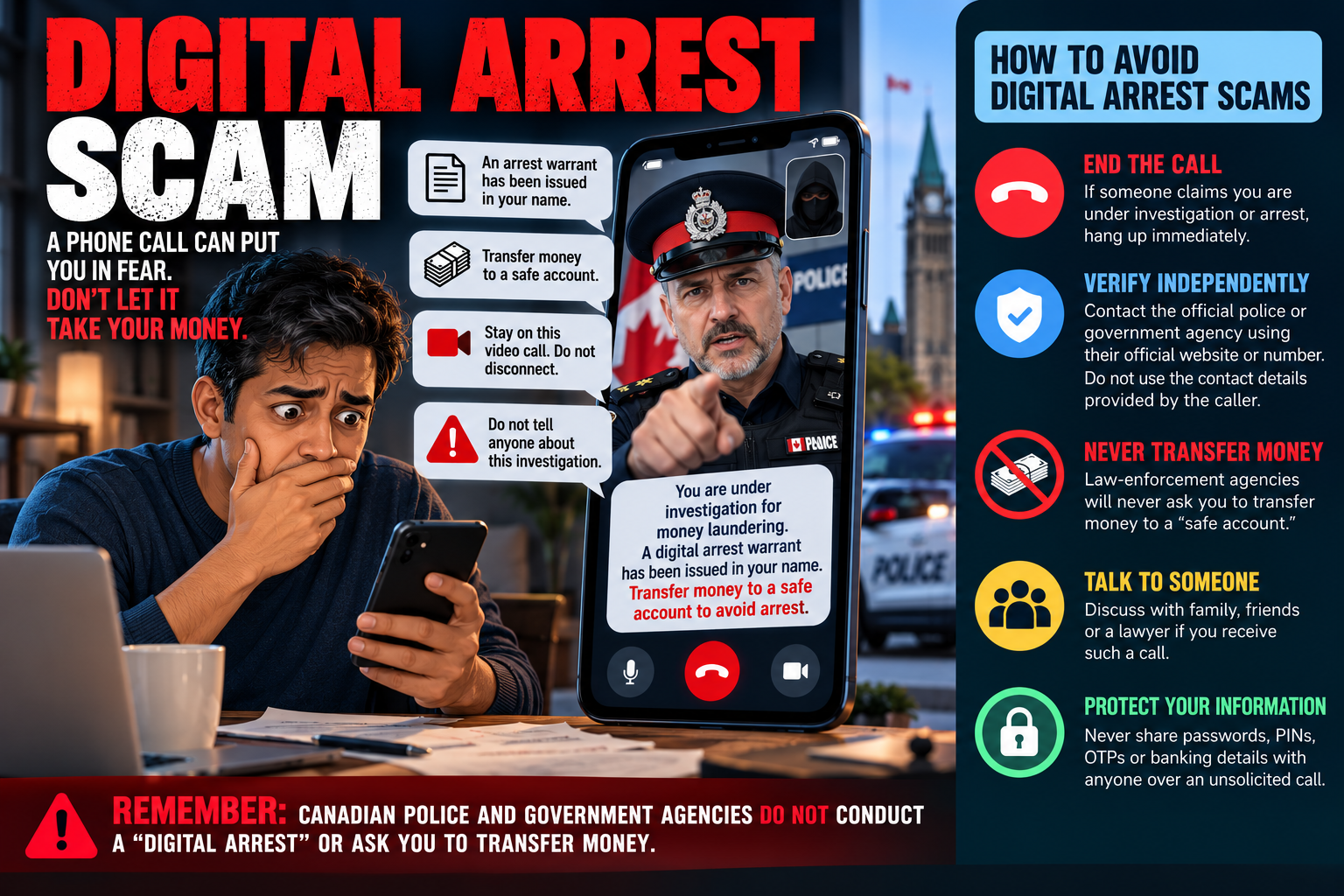
A digital arrest scam typically begins with an unexpected phone call, text message, WhatsApp message, or video call. The scammer impersonates a police officer, government official, customs officer, bank representative, or other authority figure.

The victim may be told that their identity, bank account, phone number, or identification document has been connected to a serious crime. The alleged offense might involve money laundering, drug trafficking, tax violations, illegal shipments, or suspicious financial transactions.

The scammer then claims that the victim must cooperate with an investigation to avoid arrest.

The critical fact to remember is simple:

Legitimate law-enforcement agencies do not conduct a so-called “digital arrest” in which you must remain on a video call or transfer money to prove your innocence.

How the Scam Works

Digital arrest scams rely heavily on social engineering. Criminals may already possess information such as your name, phone number, email address, or other details obtained from data breaches, social media, or previous scams.

They may use this information to make their story sound convincing.

Scammers can also use caller-ID spoofing, fake identification cards, forged documents, realistic-looking offices, prerecorded messages, and video conferencing to create the appearance of an official investigation. Increasingly, AI-generated voices, images, and other forms of synthetic media can make impersonation attempts even more convincing.

The scammer then creates urgency. You may be instructed not to disconnect the call, contact relatives, speak with your bank, or discuss the supposed investigation with anyone.

Eventually, the criminal demands money. They may describe it as a security deposit, verification transaction, fine, bail payment, or temporary transfer to a “safe account.”

There is no safe account. The money is being transferred to criminals.

Warning Signs

Be extremely cautious when someone unexpectedly contacts you and:

  • Claims that you are under investigation or facing immediate arrest.
  • Demands that you remain continuously connected by phone or video.
  • Tells you not to contact family members, your bank, a lawyer, or local police.
  • Requests money to cancel an arrest warrant or prove your innocence.
  • Asks you to transfer money to a “safe,” “government,” or “verification” account.
  • Demands cryptocurrency, gift cards, wire transfers, or other difficult-to-reverse payments.
  • Sends supposed warrants, identification cards, court documents, or police reports through messaging applications.
  • Pressures you to act immediately and discourages you from independently verifying the situation.
  • Requests passwords, PINs, one-time passwords (OTPs), security codes, or banking credentials.

The combination of authority + fear + secrecy + urgency + payment is a major indication of fraud.

How to Protect Yourself

If you receive such a call, do not panic and do not transfer money.

End the conversation. Do not use a telephone number, website, email address, or contact information supplied by the caller. Instead, independently locate the official contact information for the organization the person claims to represent.

Contact the relevant police department, government agency, financial institution, or other organization directly and verify the claim.

Never provide passwords, banking PINs, authentication codes, or other security credentials to an unsolicited caller. Enable multifactor authentication on important accounts and use strong, unique passwords.

You should also limit the amount of personal information publicly available through social media. Details about your family, workplace, travel, telephone number, or financial activities can sometimes help criminals construct more convincing stories.

What If You Already Sent Money?

Act immediately.

Contact your bank or financial institution and explain that you were the victim of fraud. Ask whether the transaction can be stopped, recalled, or frozen.

Change passwords for any accounts that may have been exposed and review your financial accounts for suspicious activity. If you disclosed authentication information, contact the relevant service providers immediately.

Save evidence such as phone numbers, screenshots, messages, emails, payment receipts, account information, and copies of documents sent by the scammers. Report the incident to the appropriate law-enforcement and fraud-reporting authorities in your country.

Be cautious of anyone who subsequently claims they can recover your stolen money for an upfront payment. Recovery scams frequently target people who have already been victimized once.

The Most Powerful Defense: Stop and Verify

Digital arrest scams succeed because criminals try to prevent victims from having enough time to think.

If someone claiming to represent an authority suddenly demands secrecy, immediate action, or money, stop communicating with them and verify the situation independently.

A genuine authority does not need you to transfer your savings to a mysterious “safe account” to establish your innocence.

Cybersecurity is not only about firewalls, antivirus software, and strong passwords. It is also about recognizing when someone is attempting to manipulate you.

When fear creates urgency, slow down.

Disconnect. Verify. Report.

Those three actions can prevent a frightening phone call from becoming a devastating financial loss.

How to Protect Yourself from Phishing: Think Before You Click

Phishing remains one of the most common ways criminals attempt to steal passwords, financial information, and other sensitive data. Instead of directly attacking a computer, phishing attacks often target the person using it.

A phishing message may impersonate your bank, employer, delivery company, government agency, streaming service, or even someone you know. The objective is usually simple: convince you to click a malicious link, open an attachment, disclose credentials, approve an authentication request, or send money.

Modern phishing can also be highly convincing. Good spelling and professional-looking graphics are no longer reliable indicators that a message is legitimate. The FTC warns that phishing commonly uses stories about suspicious account activity, payment problems, unexpected invoices, refunds, or requests to confirm personal information.

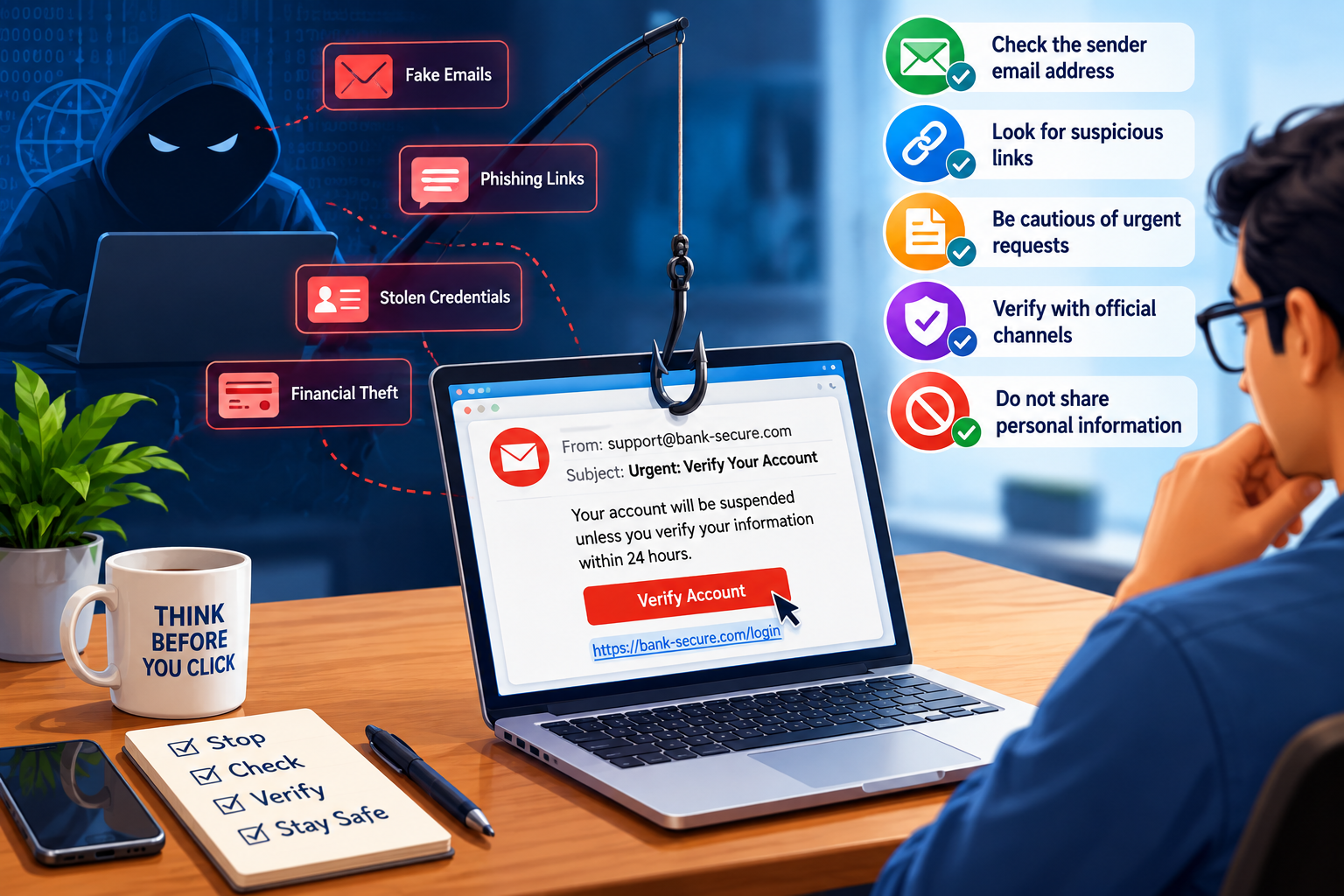
1. Be suspicious of urgency

One of the strongest phishing techniques is creating a sense of urgency:

“Your account will be suspended.”
“Payment failed—update your information immediately.”
“Someone logged into your account.”
“Your package cannot be delivered.”

Urgency encourages you to react before verifying the message. The FTC identifies pressure to act immediately as a common characteristic of scams. Consumer Advice

When a message creates fear, excitement, or urgency, slow down and verify it independently.

2. Don’t automatically trust the sender

A familiar display name or company logo does not prove that a message is genuine. Attackers can impersonate organizations and individuals.

Check the complete sender address rather than only the displayed name. Watch for misspelled domains, unexpected addresses, unusual reply-to addresses, and domains designed to resemble legitimate ones.

Also remember that a legitimate-looking message can sometimes originate from a compromised account.

3. Don’t click unexpected links

Treat links in unexpected emails, texts, social-media messages, and messaging apps cautiously.

Instead of clicking a message claiming there is a problem with your bank or another account, open the company’s official app or enter its known website address yourself. The FTC similarly recommends contacting an organization using a website or telephone number you know is genuine rather than information contained in the suspicious message. Consumer Advice

The same principle applies to QR codes. A QR code is effectively another way of directing you somewhere online, so don’t assume it is trustworthy simply because you cannot immediately see the destination.

4. Never disclose passwords or verification codes

Be extremely cautious when someone unexpectedly asks for:

  • Passwords or PINs
  • Credit-card or banking information
  • One-time verification codes
  • Account recovery codes
  • Personal identification information
  • Authentication approvals

A particularly important rule is never give another person a one-time authentication code because they asked for it.

5. Use unique passwords and a password manager

Every important account should have a strong, unique password.

Reusing passwords creates a dangerous domino effect: if one account is compromised, attackers may attempt those credentials against other services.

A reputable password manager can generate and store long, random passwords so you don’t have to remember every password yourself. CISA also recommends long, strong, unique passwords and using a password manager. CISA

6. Enable multi-factor authentication

Multi-factor authentication (MFA) provides an additional barrier if an attacker obtains your password.

Where available, consider phishing-resistant authentication, such as passkeys or hardware security keys, especially for critical accounts. CISA notes that not all MFA methods provide the same protection and recommends phishing-resistant MFA as the strongest form. CISA

At minimum, enable MFA on your email, banking, cloud-storage, social-media, shopping, and other sensitive accounts.

7. Never approve an unexpected MFA request

Attackers who already know your password may repeatedly send authentication requests hoping that you eventually tap Approve.

If you receive an authentication request when you aren’t signing in, deny it. Then investigate the account, change the password if appropriate, and review recent sign-in activity.

An unexpected authentication prompt can itself be a warning that someone is attempting to access your account.

8. Keep your devices updated

Keep your computer, smartphone, browser, security software, and applications updated. Enable automatic updates wherever practical.

Security updates address vulnerabilities that malicious websites, attachments, or software could potentially exploit. The FTC recommends keeping security software and operating systems automatically updated as another layer of protection. Consumer Advice

9. Verify unusual requests through another channel

Suppose you receive an email apparently from your manager asking you to purchase gift cards, a family member urgently requesting money, or a supplier unexpectedly changing banking details.

Verify the request independently.

Call the person using a number you already know, speak to them directly, or contact the organization through an established channel. Do not rely solely on contact information supplied in the suspicious message.

This becomes increasingly important as impersonation techniques become more sophisticated.

10. Know what to do if you clicked

Accidentally clicking a phishing link doesn’t mean you should ignore what happened.

If you entered a password, change it immediately and change it anywhere else you reused it. Enable MFA, review active sessions and recent account activity, and sign out unknown devices. If you downloaded something suspicious, update your security software and run a security scan; this is also recommended by the FTC. Consumer Advice

If financial information was disclosed, contact the relevant financial institution promptly.

The most important habit: Stop, verify, then act

Technology such as spam filtering, secure DNS, endpoint protection, password managers, passkeys, and MFA can dramatically reduce risk, but phishing ultimately tries to persuade you to make a decision.

Before clicking, downloading, paying, authenticating, or providing information, ask yourself:

Was I expecting this message? Who is really asking me? Why do they need this information? Can I verify the request independently?

Conclusion

Phishing attacks succeed by exploiting trust, urgency, curiosity, and fear. Your strongest defense is therefore a combination of technology and awareness.

Use unique passwords, enable MFA or passkeys, keep your devices updated, avoid unexpected links and attachments, and independently verify unusual requests. Most importantly, never allow an unexpected message to pressure you into making an immediate security or financial decision.

A few seconds of verification can prevent a compromised account, financial loss, malware infection, or identity theft.

When in doubt: don’t click—verify.

For additional guidance, see the FTC’s guide to recognizing and avoiding phishing scams and CISA’s phishing security guidance.

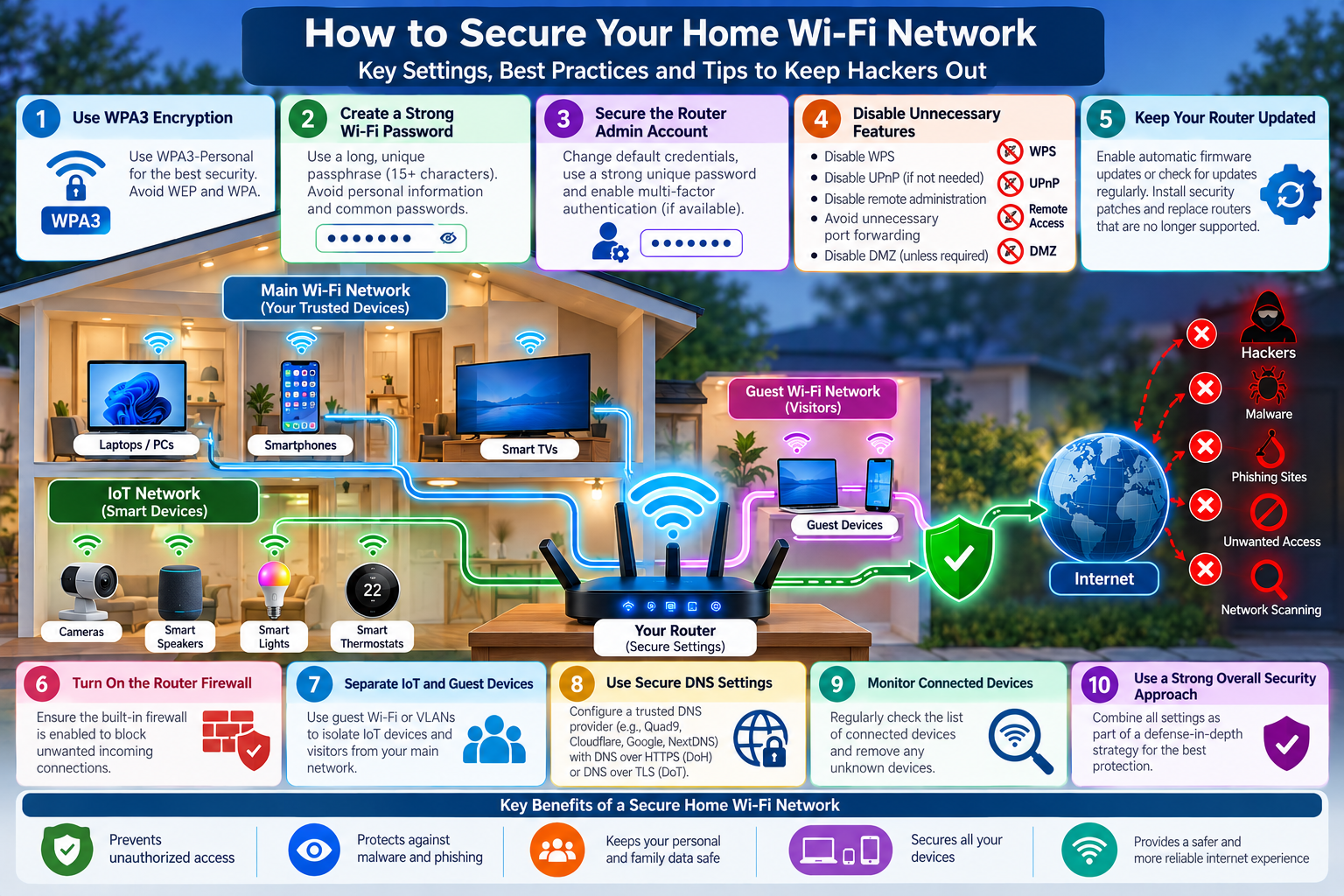
How to Secure Your Home Wi-Fi Network and Keep Hackers Out

Your home Wi-Fi network is the digital front door to almost everything you do online. Computers, smartphones, security cameras, smart TVs, gaming consoles, voice assistants, and IoT devices may all connect through the same router. If that router or wireless network is poorly secured, an attacker who gains access could potentially misuse your internet connection, target connected devices, or change network settings.

Fortunately, a few carefully chosen settings can significantly strengthen a home network.

1. Use WPA3 encryption

The first setting to check is Wi-Fi security mode. For modern devices, use WPA3-Personal whenever your router supports it. The FTC recommends WPA3 Personal or WPA2 Personal, with WPA3 being the newer option. Avoid legacy WEP and WPA, which no longer provide adequate protection. Consumer Advice

If some older devices cannot connect using WPA3, a WPA2/WPA3 transitional mode may be necessary. If your router supports only WEP or the original WPA even after a firmware update, consider replacing it.

2. Create a strong Wi-Fi password

Your Wi-Fi password should be long, unique, and difficult to guess. Avoid names, addresses, telephone numbers, birthdays, or simple passwords such as HomeWiFi123.

A long random password or passphrase is considerably stronger. For example, use several unrelated words combined with numbers or symbols. The FTC recommends aiming for at least 15 characters when creating passwords. Consumer Advice

Just as importantly, never reuse your Wi-Fi password for email, banking, social media, or other accounts.

3. Secure the router administrator account

Your Wi-Fi password and router administrator password should be different. The administrator account controls critical settings including DNS, firewall rules, wireless security, port forwarding, and firmware.

Change the router’s factory-default administrator credentials immediately. If the router supports multi-factor authentication for its management account, enable it. Disable administration from the internet—often called Remote Administration, Remote Management, or WAN Management—unless you genuinely need it. The FTC specifically recommends disabling remote management. Consumer Advice

4. Disable unnecessary network features

Convenient router features can sometimes increase the attack surface. Unless specifically required, consider disabling:

  • WPS (Wi-Fi Protected Setup): Connect devices by entering the Wi-Fi password instead.
  • UPnP: Disable it if your applications and devices do not require automatic port configuration.
  • Remote administration: Manage the router only from your local network.
  • DMZ host: Do not expose a computer or other device directly to the internet unless you understand and require the configuration.
  • Unnecessary port forwarding: Remove rules you no longer use.

The FTC recommends turning off WPS, remote management, and UPnP when they are unnecessary. Consumer Advice

5. Keep your router updated

Routers are computers running specialized operating systems, and vulnerabilities can be discovered in their firmware.

Enable automatic firmware/security updates if your router provides the option. Otherwise, periodically check the manufacturer’s support site. Software updates frequently contain security patches that address newly discovered vulnerabilities. Consumer Advice

If your router has reached end-of-support and no longer receives security updates, replacing it should be seriously considered.

6. Turn on the router firewall

Most modern routers contain a built-in firewall that separates your home network from unsolicited connections originating on the internet. Verify that it is enabled. The FTC specifically recommends checking that your router firewall is turned on. Consumer Advice

For most households, avoid manually exposing devices to the internet unless there is a clear reason.

7. Separate IoT and guest devices

Smart cameras, doorbells, televisions, speakers, appliances, and other IoT devices should ideally be separated from computers and devices containing sensitive information.

If your router supports Guest Wi-Fi, VLANs, or IoT network isolation, consider placing IoT devices on a separate network. Guests should similarly use a guest network rather than receiving the password for your primary Wi-Fi.

The FTC recommends separate networks as a way of limiting access between devices—for example, separating security cameras from computers and printers. Consumer Advice

8. Secure your DNS

Wi-Fi security should work alongside secure DNS. Configure a trusted DNS resolver such as Quad9, Cloudflare, Google Public DNS, or NextDNS. Where supported, enable DNS over HTTPS (DoH) or DNS over TLS (DoT) and DNSSEC validation.

A security-filtering DNS service can provide another defensive layer by preventing devices from resolving known malicious or phishing domains.

A recommended secure configuration

For a typical modern home, a strong baseline would be WPA3-Personal, a long unique Wi-Fi passphrase, a completely different router-administration password, automatic firmware updates, the router firewall enabled, WPS and remote administration disabled, and separate guest/IoT networks. Add encrypted and security-filtering DNS for another layer of protection.

No home network can be made completely immune to attack. The objective is defense in depth: an attacker should have to overcome several independent security controls rather than exploiting one weak password or poorly configured setting.

Conclusion

Securing your Wi-Fi network does not require becoming a network engineer. A handful of router settings can dramatically reduce unnecessary exposure. Start with strong WPA3 encryption and unique passwords, secure the router’s administrator interface, install firmware updates, disable services you do not need, isolate less-trusted IoT devices, and periodically review the devices connected to your network.

Your router protects the boundary between your digital home and the internet. Secure the router, strengthen the Wi-Fi, and every connected device benefits.

For additional guidance, see the FTC’s guide to securing home Wi-Fi and CISA’s wireless security guidance.

Why Your Home Router’s DNS Settings Matter

A simple configuration change can improve security, privacy, and resilience across your entire home network.
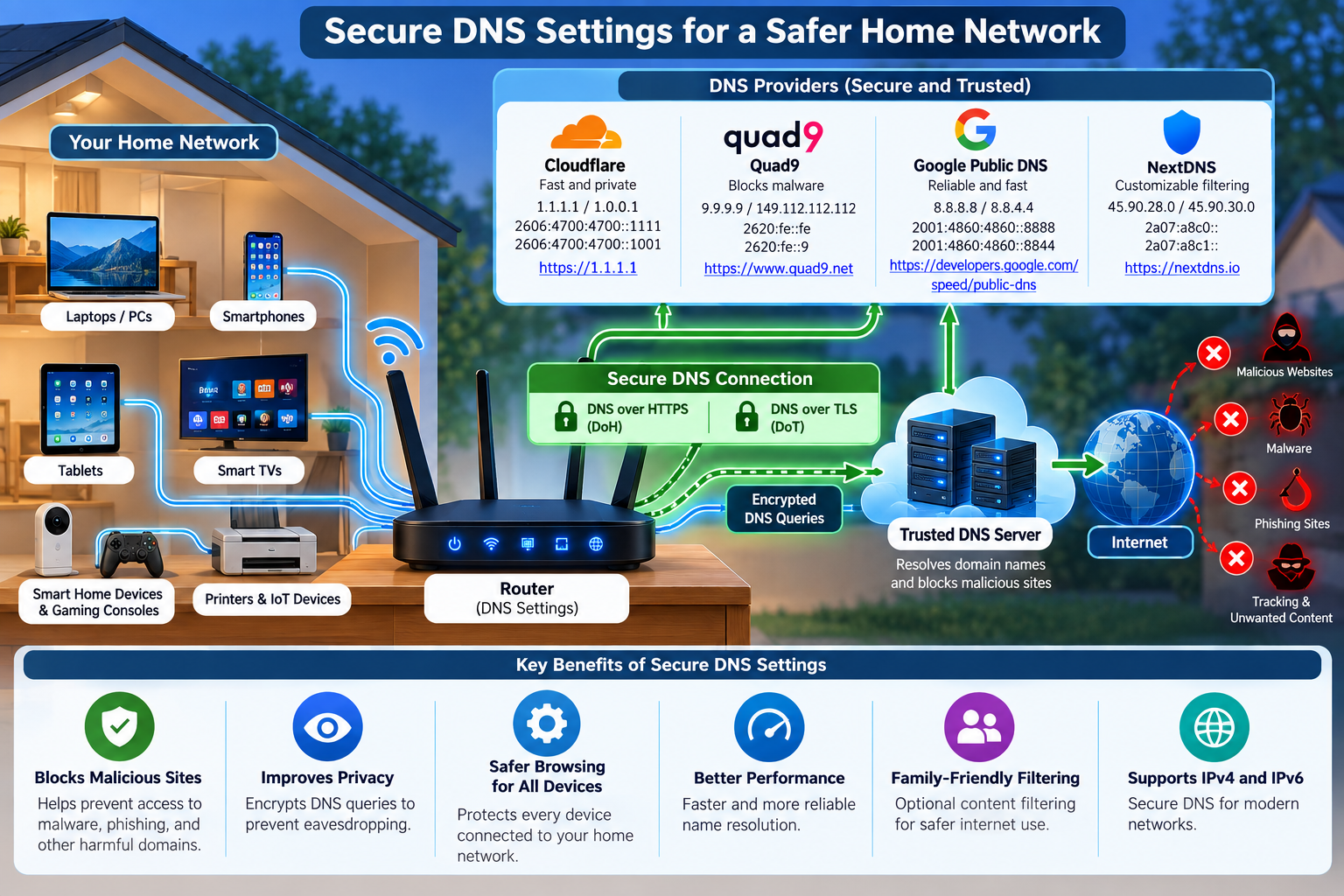
Your router is the gateway between your home and the internet, but one of its most important settings is often overlooked: the Domain Name System (DNS) resolver. DNS translates familiar names such as example.com into IP addresses that computers can use. Most home routers automatically use DNS servers supplied by the Internet service provider (ISP). That works, but it is not always the strongest choice for security or privacy.

Why DNS security matters:

Nearly every website, app, smart television, game console, phone, and IoT device in a home performs DNS lookups. Traditional DNS can travel across the network without encryption, making queries potentially visible to parties on the network path. A trustworthy resolver can also provide DNSSEC validation, which helps detect forged or tampered DNS responses. Security-focused resolvers go further by blocking domains associated with malware, phishing, botnets, and other threats before a device connects to them.

Configuring DNS at the router is particularly useful because the setting can automatically apply to devices that obtain their network configuration from the router. Instead of changing DNS individually on every laptop, phone, smart speaker, or appliance, you establish a stronger default for the entire household.

The most secure settings for a home router:

Recommended DNS providers:

ProviderUseful home-security optionAddresses / features
Quad9Malware blocking + DNSSEC9.9.9.9 / 149.112.112.112; DoH and DoT available
Cloudflare1.1.1.1 for Families — malware blocking1.1.1.2 / 1.0.0.2; DoH and DoT available
Google Public DNSGeneral-purpose validated/encrypted DNS8.8.8.8 / 8.8.4.4; DoH and DoT available
NextDNSCustomizable filtering and privacy controlsPersonalized configuration; encrypted DNS supported

Provider links:

Quad9

Cloudflare 1.1.1.1

Google Public DNS

NextDNS

A practical security-first choice

For a household primarily concerned with cybersecurity, a strong starting point is Quad9’s malware-blocking resolver (9.9.9.9 and 149.112.112.112), combined with DoH or DoT when the router supports encrypted DNS. Cloudflare’s malware-blocking addresses (1.1.1.2 and 1.0.0.2) are another straightforward option. Families wanting more granular policies, analytics, or configurable blocklists may prefer NextDNS.

DNS filtering is not a replacement for router firmware updates, strong Wi-Fi encryption, unique passwords, endpoint protection, or safe browsing habits. It is, however, an unusually effective security layer because one router-level change can improve the DNS posture of many devices at once. After changing the settings, restart or renew network connections and use the DNS provider’s test page to verify that the intended resolver and encrypted-DNS features are actually being used.

Sources and further reading

Cloudflare: Set up 1.1.1.1 on a router

Cloudflare: DNS encryption

Quad9: Service addresses and features

Google Public DNS: FAQ

NextDNS: Privacy policy

DNS may operate quietly in the background, but it plays a critical role in the security, privacy, and reliability of a home network. By configuring a trusted DNS provider at the router level, you can extend an additional layer of protection to virtually every connected device in your home—from laptops and smartphones to smart TVs, gaming consoles, cameras, and IoT devices.

For stronger protection, consider a DNS service that supports DNSSEC validation, DNS over HTTPS (DoH), or DNS over TLS (DoT) and, where appropriate, malicious-domain filtering. Providers such as Quad9, Cloudflare, Google Public DNS, and NextDNS offer different combinations of security, privacy, performance, and filtering capabilities, allowing you to choose the service that best matches your household’s requirements.

Secure DNS should be viewed as one component of a broader defense-in-depth strategy. Keeping your router firmware updated, using WPA2 or WPA3 encryption, maintaining strong and unique passwords, securing IoT devices, and regularly reviewing connected devices remain equally important.

A small change to your router’s DNS configuration can strengthen the security posture of your entire home network. Your router is the front door to your digital home—secure the DNS behind it.