Apple Maps vs. Google Maps – a user’s perspective

When Apple decided to abandon Google Maps and create its own, users expected Apple to create the next generation mapping product. However, when Apple launched its maps with iOS 6, there were reports of multiple errors in Apple Maps. Collapsed bridges, wrong names, and non-existent landmarks were a few errors blown out of proportion by the media.

Do Apple Maps really suck? Are the maps unreliable? As an iOS 6 user, would I get lost without Google Maps?

The only way to answer these questions is for me to compare both maps using a user-centric approach. I decided to analyze the route from place A to place B using both maps. For my test, I chose two well-known landmarks in the Vancouver Lower Mainland, that is starting from the Metropolis at Metrotown Mall to the Waterfront Skytrain Station.

Apple Maps: Here is the route displayed by Apple Maps:

20120930-201318.jpg

The map view looked alright to me. However, to be more accurate, I looked at the list view:

20120930-201444.jpg

What I liked about the Apple Maps (list view) was that Nelson St, Hazel St, and Miller Ave were displayed. Depending upon where exactly the user was, one of the streets would be visible within 100-150 meters. Apple maps took me through the Dunsmuir viaduct and finally Cambie St, Pender St, and Seymour St directly into Downtown Core. As a person who lives here, the route looked alright to me.

Google Maps: Here is the route displayed by Google Maps:

20120930-202205.jpg

Let us see the Google Maps route using the list view:

20120930-202307.jpg

Apple Maps seemed to be taking a slightly different route, but at first glance, neither route is glaringly incorrect. Google Maps was taking another route via Main St and Hastings St to Seymour St and finally to Downtown Core. In the Google Maps route, the first step struck me as strange. Google Maps tells the user ‘Head Northeast’. How is the user supposed to know what Northeast is? Unless the user is holding a compass, it is not user-friendly to say head in a particular direction.

Both routes are correct. However, here are the differences:

Apple Maps:

  • Specifies each street right from the start to the end. Does not say head ‘in a particular direction’.
  • Gives turn-by-turn navigation via large, unmistakeable labels on the map.

Google Maps:

  • Says head Northeast at the start of the route. Pointing users in a direction rather than towards a street, in my opinion, is not user-friendly.
  • Provides street-view, showing users exactly where they need to go.

Aside from the above differences both Apple and Google maps seem to be quite accurate. Considering the fact that Apple Maps is just the first version and the error-reporting is crowd-sourced, I am sure the accuracy of the maps will improve as users use them more and more.

As for the errors like collapsed bridges and non-existent landmarks, Apple has no option but to fix them as soon as possible.

(Edited by Prarthna Sri)


Is the Smartphone Industry ‘Curious’ about Curiosity?

The world holds its breath as the next battle for dominance in the smartphone industry begins with the launch of the Samsung Galaxy S4. Apple recently defeated Samsung in a patent lawsuit involving user-interface elements. Samsung lost the battle, but they don’t necessarily have to lose the war. Samsung will not fade away into the night without putting up an aggressive fight. Samsung plans to sue Apple on its using the LTE (a technology for faster data speeds called Long-Term Evolution) chip in the iPhone 5.

As the smartphone war rages on, it is evident that there are many areas where industry giants compete for dominance – user-interface, operating system, physical design, connectivity, storage, and camera.

But there is one area where companies haven’t done much – the battery. Until the smartphone industry invests heavily into battery technology, devices are limited to what they can do on a single charge. Lithium-ion batteries are used extensively in all smartphones as of today. The life of a single charge is a few hours (assuming a user talks, texts, and uses data connections such as Wi-Fi or 3G/LTE). After a smartphone runs out of battery, users have no option but to carry a charging cable, USB charger, portable USB charger, a battery pack (like Mophie), or just wait to reach home to charge the phone.

Talking about battery life, the smartphone industry can learn a lot from the Mars Rover Curiosity. Curiosity has reached Mars and has starting sending photos, conducting experiments and, exploring the Martian mountains. For doing all this, Curiosity needs one thing – power.

Previous generations of Mars Rovers used solar panels to power various devices. However, dust settled on the solar panels making them inefficient. Also, note that the Sun looks much smaller from Mars as Mars is at a greater distance from the center of the solar system. Smaller sun = less light = less solar power.

To solve this problem of inefficient solar power, Curiosity uses a Multi-Mission Radioisotope Thermoelectric Generator (MMRTG). Simply put, Curiosity uses the radioactive isotope Plutonium-238 as the raw material. Heat is automatically generated due to the natural decay of Plutonium-238. A device called a Thermocouple uses this heat to generate electricity. The Plutonium-238 is well shielded, and the heat – and not the radiation – is used to generate electricity. This device can last for 14 years without requiring any maintenance! Curiosity will constantly receive its power until Plutonium-238 completely decays.

Now, coming back to the smartphone industry, why can’t we design something like this for smartphones? Imagine having a very small amount of radioactive isotope that is well-shielded and attached to the smartphone. The device could then, theoretically, produce electricity for at least a year (or more!). Instead of battery packs like Mophie, we could have smartphones that generate their power and don’t need a recharge! Depending on the stability of the technology, we could have a smartphone that could last for years without a recharge. You buy a smartphone and dispose of it after a few years without charging it even once.

When I told my wife about this idea, she said, and I quote: ‘I am not carrying a nuclear bomb in my pocket!’. Well, what I am proposing is not exactly a nuclear bomb since there is no chain reaction like nuclear fission or nuclear fusion going on. The natural decay of Plutonium-238 generates heat and hence the power. Theoretically, a well-shielded pack of Plutonium-238 is safer than batteries that we have today. The current batteries have greater chances of exploding than a well-shielded pack of Plutonium-238!

The future of the smartphone industry is uncertain. There are no obvious winners as of today. In my opinion, only the company that designs and patents advanced battery technology will emerge as the winner. The company holding the key to advanced battery technology will be the undisputed winner and will rule the smartphone industry for generations to come. Simply because, more power equals to more things the smartphone can do without dying.

Hey Apple and Samsung – are you listening? Hopefully, I can expect to be paid a billion dollars for my idea!

(MMRTG Source: http://mars.jpl.nasa.gov/msl/mission/technology/technologiesofbroadbenefit/power/)

Edited by: Prarthna Sri

Auditing in a touch-screen world!

Every time I inspected a home before renting it out, or even before buying it, I wish I had a quick checklist of repairs or cleaning required. In the absence of a checklist, there was no perfect way to record the defects in a house. Not having a checklist would lead to problems later – if both parties do not agree to defects. For example, you may have to pay for the stain on the carpet that was not your fault.

I found this amazing app called iAuditor. The iAuditor has a few built-in checklist that can be filled out using an iPad or an iPhone. The UI is a very simple and intuitive:

20120430-011328.jpg

I started a new Audit. The App has a few built-in checklists (you can also create your own customized checklist):

20120430-011531.jpg

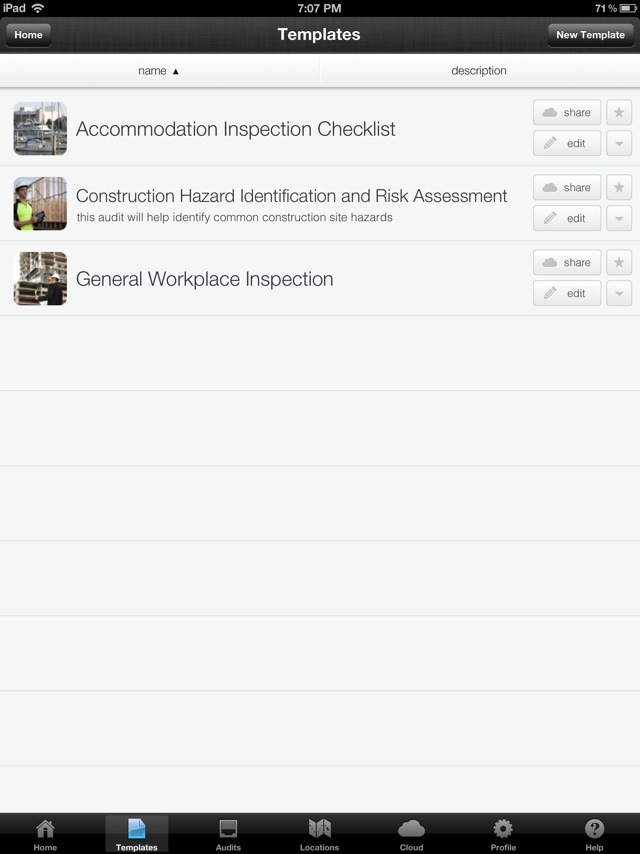
I decided to try out the Accommodation Inspection Checklist:

20120430-011632.jpg

The checklist has the following options: Yes, No and Not Applicable. Selecting No gives an option to directly add photographic evidence of non-compliance by clicking the Camera icon.
20120430-012911.jpg

There is also an option to add additional comments. An interesting feature of the App is the option for both parties to add signatures directly from the iPad!

20120430-012104.jpg

Once both parties have signed on the Audit checklist, the App gives an option to directly export to PDF. This is how an exported PDF looks:

20120430-012246.jpg

As a Technical Writer, I am extremely impressed by the perfectly formatted PDF output. I can imagine hundreds of good uses for this App in business. The following uses come to my mind:

– Safety Inspection
– Regulatory Compliance
– Manufacturing
– Pharmaceuticals
– Construction
– Real Estate

In addition to the above business uses, this App can be used in personal situations as well.

The next time you check out a home for rent, make sure to carry your iPad or iPhone. Using the iAuditor App, carefully track the defects that need to be fixed. If not, don’t be surprised if you are dinged for a stain on the carpet that existed before you moved in!

Milk, Diapers, and an iPad

During my recent visit to the Apple store, I saw Apple experts demonstrating an iPad to a group of kids and their parents. I increasingly see kids holding iPads instead of toys. An iPad is expensive, and fragile. I was curious see how a 2-year old could use an iPad. Most importantly, I was also curious to see if an iPad App was simple to use for a kid.

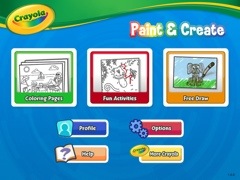
I downloaded Crayola Paint and Create – a free App for the iPad. I was interested in studying the features, user interface, user interaction, and the overall user experience. This is how the App looks:

20120421-192410.jpg

The main elements were Coloring Pages, Fun Activities and Free Draw. I decided to use Coloring pages and color a drawing:

20120421-192638.jpg

I clicked the Crayola icon at the bottom of the screen to display various types of crayons with different colors. You can see the following icons on the right: Pause (to pause the movements like snow falling or pause other interactive elements), Undo, Redo, New, Settings, Share (to share via email or on Facebook), Help, and Exit.

20120421-192912.jpg

This is how a partially colored coloring page looks:

20120421-193208.jpg

I could easily use different colors and fill different parts of the page with solid colors. This is how a fully colored page looks:

20120421-193451.jpg

The app is configured to use a finger by default. There is also a setting to use an iMarker instead of a finger (an iMarker is like a pencil that can be used with the iPad). Obviously, the Help and Settings are a little complicated for kids since they may not be able to read. Apart from Help, Settings, and Share, the other options were extremely easy to use.

What is Apple’s strategy to promote iPads for kids by launching a Kids Corner in the Apple store? What is the value proposition for parents to purchase such and expensive device for their kids? Here’s what I think:

Get an Apple user for life – That’s right. Catching them young will ensure they are Apple users for life! Kids will never choose an Android device or another tablet if they are introduced to the iPad at the age of 2. Apple’s strategy of catching users at a very young age will lead to huge revenue for years to come.

Reduce cost per user – The cheapest iPad costs approximately 400$. If a family of four – two parents and two kids use an iPad, the cost of buying an iPad is divided by 4. Although families do not use terms like Cost per User to decide whether to buy an iPad, they definitely calculate it sub-consciously.

Tap a new market segment – Kids are a huge market segment – not just for games, but also in the field of education. Tapping this market segment leads to a huge revenue for Apple.

Use kids to market the iPad and Apps – I was amazed to see how Apple was using kids to market the iPad. With the Share option, kids could share their coloring pages with their friends (the parents might share it for them). Other kids looking at these colorful pages would want to do the same. Not only is Social Media being introduced at a very young age, the iPad is being marketed via Word of Mouth (the most powerful way to influence prospective buyers).

Save money for families and schools – Families and schools can save money on paper, crayons, and other consumables required on a daily basis.

A safer option – Kids (at home or in Pre-K) eat crayons that may be harmful for their health. Since the crayons on an iPad are electronic, it is very safe for kids.

Save the environment – Reducing the usage of paper obviously save trees.

Crayola Paint and Create gave me great insights to Apple’s strategy. I could also envision the future – where most of the interaction happens through touch screens instead of keyboards. It also helped me realize that language will never be a barrier for user interaction since expressive icons are a great way to communicate with the user. Intelligence, knowledge, skills, language, and education will never be a barrier for users in the world of touch screens.

Hello kids, welcome to the iWorld!

Apple’s Art of War

Apple is the most valuable company in the world today. The main reason for Apple’s success (apart from great products) is how it fights in the mobile war. Apple uses the Guerrilla warfare strategy to make all its competitors bite the proverbial dust.

Strategy 1: Rise from the ashes with infinite wisdom

Guerrilla battle teams rise from the ashes of past defeat with the wisdom required to win. Apple was a fading company in the 90s. With the learning from previous failures, Steve Jobs’ leadership, and the launch of the iPod Classic, Apple rose from the ashes. The rest, as they say, is history.

Strategy 2: Remain hidden until it is ready to attack

Guerrilla battle teams are hidden until they attack the enemy. Similarly, Apple, with its absolute secrecy, ensures that its product strategy is always hidden. Its product lines, features, and components are always shrouded in absolute secrecy before launch. For example, nobody knew Siri was the key feature before iPhone 4S was launched.

Strategy 3: Use its weakness as a strength

Guerrilla battle teams use their weakness as strength. For example, they are small (weakness) and hence extremely mobile (strength). Unlike Windows, that can run on a variety of hardware Mac OS X could only run on the Mac hardware. This exclusivity was perceived as Apple’s biggest weakness. Today, because the iOS runs on iPhones, iPods, and iPads, it thus creates a common framework for Apple Apps. Across various Apple devices, Apple users have downloaded the apps over 25 billion times. This uniformity of hardware and operating system is now Apple’s biggest strength.

Strategy 4: Enjoy Public Support

Guerrilla battle teams enjoy public support – that’s why they win. Similarly, Apple has built a huge cult following over the years that it can tap into. Mac, iPhone and iPod users always remain loyal to Apple. This fan base is a huge plus for Apple since loyal users always upgrade to the newer versions of Apple products. For instance, have you ever heard of people standing in lines overnight for Android or BlackBerry devices?

Strategy 5: Grow stronger as the enemy grows weaker from within

Guerrilla battle teams draw their strength from the weakening enemy. This tendency is psychological as well as practical. As RIM constantly reduces the price of the BlackBerry Playbook, it shows that the BlackBerry Playbook is not worth the original price. HP shutting down its tablet business signifies defeat. The weakening and dying enemies help Apple grow stronger psychologically as well as in market share.

When Sun Tzu wrote the Art of War, I’m sure he did not think Apple would use it to reach the zenith of excellence and success!

Laptop, Netbook, Tablet or Smartphone?

The problem: I already have a desktop at home as my primary computer. I am trying to choose my secondary device to carry around with me. I am looking for something that I can travel with and also take with me to the local coffee shop. I am interested in social networking, writing blogs, Google Maps, and e-mails, but nothing much else.

Following are the options:

Laptop: Carrying a laptop has its own advantages and disadvantages. A laptop is a complete system with a lot of processing power. A good laptop has enough battery to last you a long time. With a large screen, and multiple programs installed, a laptop is a good workhorse to carry around on a day to day basis. On the downside, it is heavy, bulky, and comes with a lot of accessories that need to be carried around. The power cord, the laptop case, and the mouse (an optical mouse or a magic mouse for a Mac).

Netbook (Ultrabook): The best part of the netbook is its battery power. Most netbooks have a battery life of around 8 to 10 hours (the ASUS Eee PC 1000 HE). However, it has a small screen without a CD/DVD drive. A netbook is slower and mostly used for travel. A netbook is very compact, but can be used only for email or basic surfing. Once you start doing some advanced word processing or graphics, and the netbook starts stalling.

Tablet: A Tablet is a very good option IF you don’t need to type a lot. Most tablets are very good for multimedia, movies, and social networking. If you need to type a lot, you need to have an external keyboard. A tablet does not have tactile feedback and you don’t feel it when you have pressed a key. Some tablets can play a sounds when a key is pressed. Also, in some tablets, the key is highlighted when you press it. Other than that, there is no tactile feedback. A good bluetooth keyboard is very important for a tablet in case you need to do a lot of typing.

Smartphone: A Smartphone is a very good option if you want to make and receive calls (and stay connected to the Internet). You can use a smartphone for emails, social networking, and apps. The smartphone is always connected to the Internet. The best part of a smartphone is it does not need to be booted up like a netbook or a laptop. Since smartphones are basically phones, they are always ON. Using a bluetooth keyboard, you could always type a lot of long emails or blog posts. The screen is small, but with a slightly larger font, it would be readable from a distance, say top of a table.

Assuming you don’t want to invest in a laptop or a netbook and you want something as your ‘secondary’ device, a tablet or a smartphone can serve as a very good option.

How do you choose your secondary device? Here’s how you can decide. Which of the following features do you want to use the most?

  • Internet
  • Social Media
  • Games
  • News
  • Email
  • Blog
  • Camera
  • Movies

Once you zero down on what you want to do, we could probably choose the best device. Tablets are really cool since they can do all of the above (with an external keyboard of course!).

Let us assume you just want to type long emails or blog. And you also like to interact with people using Facebook. If you don’t want to watch movies or do anything advanced on your device, maybe a smartphone with a keyboard would be a good idea.

If you would just like to use the device for blog posts or long emails, it might be ok to have a small screen. You could just get a bluetooth keyboard and type away!

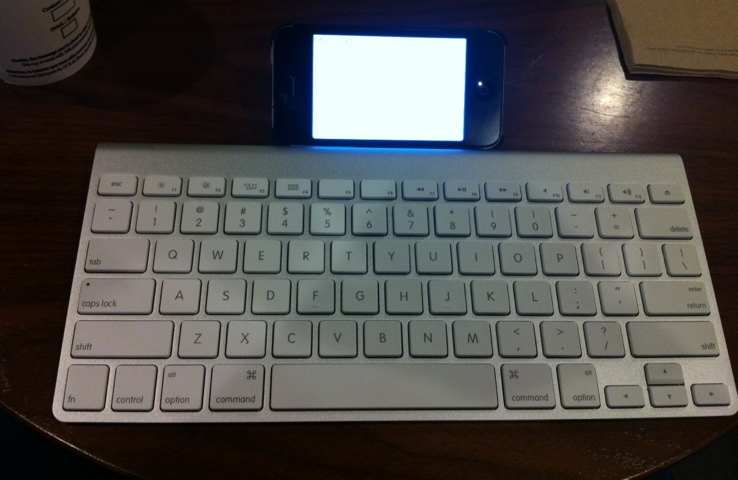
This is what your setup (smartphone with a bluetooth keyboard) would look like:

20120311-175532.jpg

However, if you want to do something rich in multimedia, watch movies or just edit photos, you might want to go for a tablet.

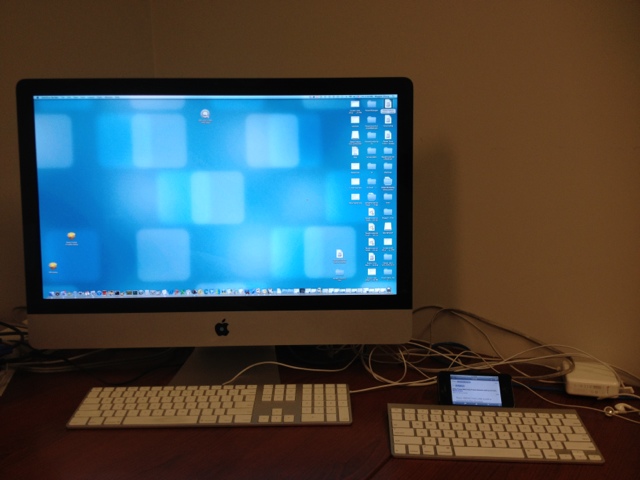
Comparing a large and small screen might seem funny, since this is what the comparison would look like:

20120311-175613.jpg

But you can’t really carry around your iMac, can you?

Another good device (which the ad classifies as both a tablet and a smartphone) is the Samsung Galaxy Note. The Samsung Galaxy Note is slightly bigger than smartphones but definitely smaller than a tablet.

Once devices like the Samsung Galaxy Note enter the market, the decision just gets more difficult. In a world where you need to decide between netbooks, laptops, tablets, and smartphones what would you call the Samung Galaxy Note?

The decision just became harder.

An Apple a day for every age

I was wondering why Apple is more successful than other companies out there. Why is Apple’s growth phenomenal even through the recession? What is it that Apple is doing right? What is Apple’s mantra for continuous success?

I have heard many reasons for Apple’s success such as: Apple has a cult following, People are crazy about Apple products, Apple is a good marketer, Apple’s secrecy is the reason for success, and the very best It was only because of Steve Jobs’ charisma.

There is a perfectly logical reason for Apple’s success. Let’s analyze what Apple is doing differently. Apple creates both hardware and the software for that hardware. The hardware specifications for each device type (smartphone, tablet) are exactly the same. When programmers write the code for the software, they have a uniform hardware platform to work with such as CPU, memory, or GPU. As a result, they are able to create a uniform operating system. A uniform hardware and a uniform operating system lead to a Uniform User Experience.

Android is an awesome operating system. However, the Android market is extremely fragmented with multiple hardware devices and hence, developers need to write different drivers for different hardware specifications. Screen resolution, input buttons, processing speed, memory, and Internet speeds are widely different for different Android devices. Android, in spite of being an amazing operating system, is thus unable to provide a uniform User Experience across all its devices like Apple.

While writing code for Apple apps, programmers can work with very uniform hardware and operating system specifications. However, for Android Apps, multiple devices and multiple operating systems need to be considered. It may not be possible for the Android apps to be tested and optimized for every hardware device out there.

But what does a Uniform User Experience mean for the success of the company? How does a Uniform User Experience translate to becoming the world’s most valuable company? How does a Uniform User Experience translate to a 100 billion dollar cash hoard?

The uniform programming environment and a Uniform User Experience has led to apps being used by a wide demographic/age groups finally leading to 25 billion downloads from the Apple App Store:

  • 2-3 years – Crayola Apps and devices for the iPad are used for kids to draw and enhance their creativity. Technology is being used at such a young age to do the same thing that was done using colors and papers.
  • 3-5 years – iPad is now being used in PreK and Kindergarten to teach kids the basic stuff that was being taught using a whiteboard. A Uniform User Experience ensures that each kid is learning the same way using the iPad. Toys are also a great hit amongst kids. (See Disney’s Cars Toys and App for the iPad)
  • 6-10 years – iPad and iPod touch are used by children to learn subjects like Math and Science. The interactivity boosts their interest and helps them learn. Each child using the same App learns in the exact same way. (Check out the Solar walk 3D App)
  • 10-16 years – Games are a huge hit in this age group. Thousands of games are being used today by pre-teen and teens today.
  • 16-20 years – Social networking and music are a great hit. Again, the User Experience is uniform across all devices for the same App.
  • 20+ years – News, Cooking, Games, Social networking, Music, Utilities and thousands of apps for every age is available today. Each App provides a Uniform User Experience for all users.

Android is a formidable opponent for the iOS. If there was a single hardware device (say Samsung Galaxy II, or Samsung Galaxy Tab), with a streamlined and exhaustively uniform Android operating system, the landscape of the mobile market could be very different today.

Meanwhile, there’s always an Apple App a day for every age.

Writing for Software vs. Writing for Hardware

Software and Hardware are different worlds – for the user as well as for the Technical Writer. A different outlook is required for Software Technical Writers to scale up and write a Hardware manual.

User Interface vs. Physical components When it comes to Software, we always think in terms of a ‘User Interface’. Most of our effort estimation models are ‘screen based’. When it comes to hardware, however, it is impossible to perceive a world which cannot be counted in terms of user interface. How do we estimate? How do we gather inputs?

There are many tasks performed by the user in the hardware world. For example, assembling the product, installation, and servicing. And these tasks are what helps estimate the effort and gather inputs for our manuals. To get a better idea of how to structure your document, go to the hardware lab and request the manager to show you a dissembled piece of the product. Go through the assembly and installation process. Ensure to use a Task-based estimation model for estimating the effort required to write the manual.

While studying the system, be extremely careful about touching or moving the components of the particular product. You might require a briefing from an engineer before you handle the components yourself. This might be a frustrating experience at first, but the training will go a long way to help understand the hardware components and how to handle them.

Conventional Terminologies vs. Industry Standards In the software world, we use terminologies like screen, field, checkbox, task bar, and menu. But, in the hardware world, many terminologies are used which are very different. For example, you might use names of connectors, wire, boards, semiconductor, or FPGA etc. Each of these components has a specific nomenclature as per industry standards. For example, a connector might be an RJ-11, RJ-12 or RJ-10. A wire might be a 9AWG or 23AWG (American Wire Gauge).

Put in a good amount of research to understand the terminologies for your hardware domain. This will help you phrase the right questions for the engineer.

While writing software manuals, we are satisfied when the engineer says that an object on the application is a ‘Screen’ or a ‘Menu’. Mainly because we know what the engineer is referring to. We also know that both the developer and the writer refer to a ‘Field’ in the same manner. We understand it when the software developer says ‘Hey, the order number field is numeric’. The consequences of replacing the description of a numeric field with an alphanumeric description might not be catastrophic.

Whereas, in the hardware manual, replacing a 9AWG wire with a 23AWG wire might lead to your product going up in smoke! A wire has many characteristics such as AWG, Voltage, Flame Rating and UL Rating. Be particular when it comes to specifying names of your hardware components and their type.

Screenshots vs. Illustrations Obtaining screenshots for your software manual is easy – press the Print-Screen button and you have the screenshot for your product. You can further edit your illustration using various tools.

For Hardware manuals, you need to use complex engineering drawings generated in CAD. You may not always be trained to create such complex drawings. In such a scenario, contact your product designer to use the illustrations created at the product design stage. Illustrations from ProE or AUTOCAD can be exported to Adobe Illustrator format. Adobe Illustrator files (with extension .ai) can be imported or inserted in the hardware manual using FrameMaker.

These illustrations are extremely difficult to create if you have not been trained in CAD. However, you can easily manipulate these illustrations in Adobe Illustrator. For example, you can add captions and change the size of the illustration using Adobe Illustrator with little or no training.

CMM vs. UL Software projects go through CMM certification to ensure that they have a high level of predictability. But some of the software products and projects are delivered to the users without CMM certification. Consequently, the product documentation also goes to the users without the CMM certification.

Hardware products have to be evaluated by Underwriters Laboratories. Unlike CMM, this evaluation is mandatory. Products are evaluated in terms of their reliability and safety. Electromagnetic radiation, exposure to laser and proper grounding are some of the factors considered for evaluation.

Hardware manuals have to carry the appropriate Restriction of Harzardous Substances statements (RoHS). Many substances like batteries, semiconductors, and other hardware materials are hazardous to living beings and hence proper RoHS statements have to be added to the hardware manuals.

Not adding statements for certification or improper RoHS statements might lead to disastrous consequences. First, the product might not pass the UL certification leading to additional expenses for the company. Second, and the most critical consequence, will be that the user might not take proper safety measures and might be injured while using the product. This situation usually leads to a lawsuit. And if document does not have proper safety statements, the company has to pay millions of dollars towards settlement of the lawsuit. Not to mention the damage that such a lawsuit will cause to the company’s reputation.

Work closely with your certification and legal department to ensure that your document is compliant with all certification and has the adequate statements.